What Is Speech to Text and How to Use It: A Complete Beginner's Guide

Eric King
Author
What Is Speech to Text and How to Use It: A Complete Beginner's Guide
Speech-to-text (STT) technology has transformed how we interact with devices, create content, and improve accessibility. But what exactly is speech to text, and more importantly, how can you use it effectively?
This comprehensive beginner's guide will walk you through everything you need to know about speech-to-text technology, from basic concepts to practical applications and step-by-step usage instructions.
What Is Speech to Text?
Definition
Speech to text (also called voice to text or speech recognition) is a technology that converts spoken words into written text. Using artificial intelligence and machine learning, STT systems analyze audio input and transcribe it into readable, editable text format.
How It Works: The Simple Explanation
Think of speech-to-text as a highly sophisticated digital transcriber that:
- Listens to your voice through a microphone
- Processes the audio using AI algorithms
- Recognizes patterns and matches them to words
- Outputs the transcribed text
Real-World Example
When you say: "Hey Siri, what's the weather today?"
The speech-to-text system:
- Captures your voice
- Converts it to text: "what's the weather today"
- Processes the command
- Responds accordingly
How Does Speech to Text Technology Work?
The Technical Process (Simplified)
1. Audio Input Capture
Your voice is recorded through a microphone, creating a digital audio signal.
2. Audio Processing
The system cleans up the audio:
- Removes background noise
- Normalizes volume levels
- Enhances voice clarity
3. Feature Extraction
The AI analyzes the audio for:
- Phonemes (individual sound units)
- Pitch and tone
- Speech patterns
- Pauses and emphasis
4. Language Modeling
The system uses AI models trained on millions of hours of speech to:
- Match sounds to words
- Understand context
- Apply grammar rules
- Distinguish between homophones (e.g., "their" vs. "there")
5. Text Output
The final transcribed text is generated and displayed.
Modern AI-Powered Speech to Text
Today's best STT systems use deep learning models like:
- OpenAI Whisper - Highly accurate, multilingual
- Google Speech-to-Text - Fast, cloud-based
- Microsoft Azure Speech - Enterprise-grade
- AssemblyAI - Developer-friendly API
These AI models are trained on hundreds of thousands of hours of audio data, enabling them to understand:
- Different accents and dialects
- Technical terminology
- Multiple languages
- Various audio qualities
Why Use Speech to Text?
Key Benefits
1. Speed
- Type at 40 words per minute? Speak at 150+ words per minute
- Transcribe meetings and interviews in real-time
- Create content 3-4x faster
2. Accessibility
- Help people with disabilities
- Support those who struggle with typing
- Enable hands-free operation
3. Productivity
- Transcribe meetings automatically
- Convert voice notes to text
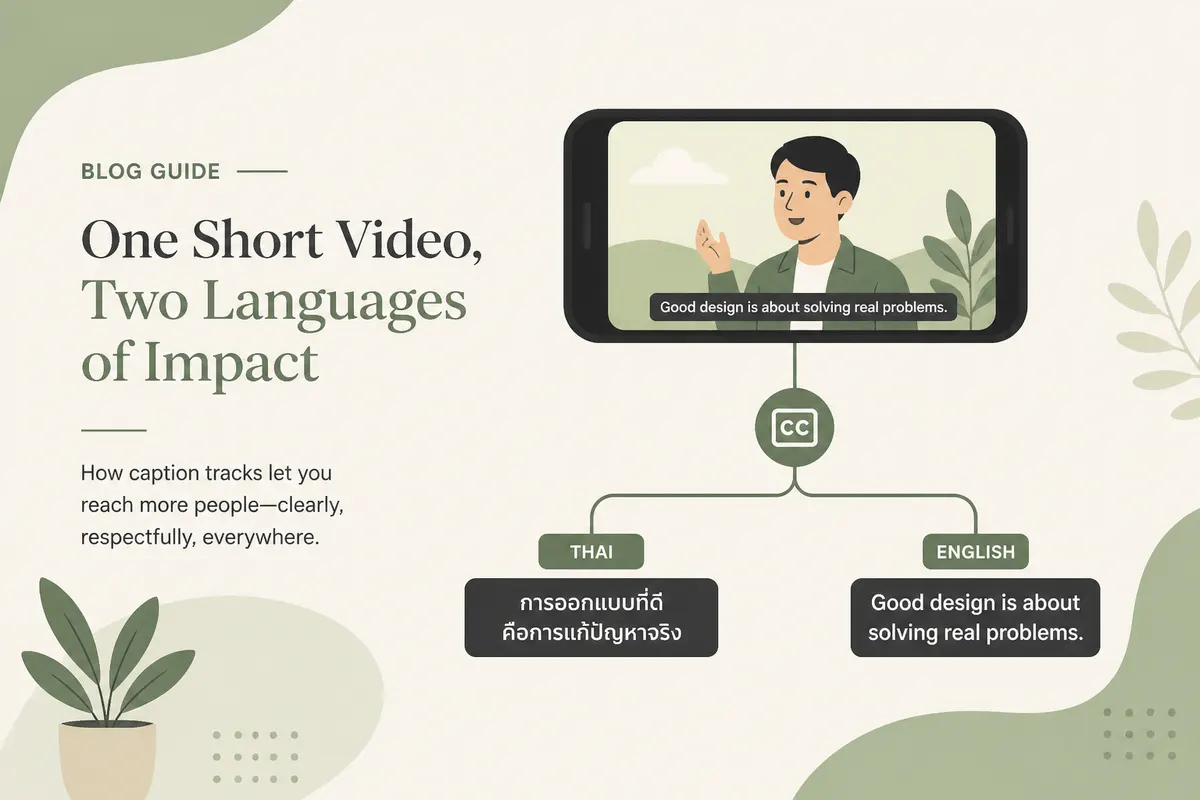
- Create captions for videos
- Draft emails while commuting
4. Multilingual Support
- Transcribe in 100+ languages
- Break language barriers
- Support global communication
5. Cost Savings
- Reduce manual transcription costs
- Eliminate the need for professional transcribers
- Save time on documentation
How to Use Speech to Text: Step-by-Step Guide
Method 1: Using SayToWords (Recommended for Beginners)
SayToWords is a free, easy-to-use speech-to-text tool perfect for beginners.
Step 1: Visit SayToWords
Go to https://saytowords.com
Step 2: Choose Your Input Method
- Upload an audio file (MP3, WAV, M4A, etc.)
- Record directly using your microphone
Step 3: Select Language
Choose the language of your audio (supports 100+ languages)
Step 4: Click "Transcribe"
The AI processes your audio in seconds to minutes (depending on length)
Step 5: Get Your Text
- View the transcription
- Edit if needed
- Download as TXT, DOCX, or PDF
Pro Tip: For best results, ensure:
- Clear audio (minimal background noise)
- Good microphone quality
- Natural speaking pace
Method 2: Using Built-In System Tools
On Windows 11
Step 1: Enable Voice Typing
- Press
Windows Key + H
Step 2: Start Speaking
- Your words appear as text
Step 3: Use Voice Commands
- Say "delete that" to erase
- Say "new line" to add spacing
On Mac
Step 1: Enable Dictation
- Go to System Preferences → Keyboard → Dictation
- Turn on Dictation
Step 2: Use Keyboard Shortcut
- Press the Fn (Function) key twice
- Start speaking
Step 3: Edit and Format
- Use voice commands for punctuation
- Say "period", "comma", "question mark"
On iPhone/iPad
Step 1: Open Any Text Field
- Tap where you want to type
Step 2: Tap Microphone Icon
- Located on the keyboard
Step 3: Speak
- Your words appear as text in real-time
On Android
Step 1: Open Keyboard
- Tap any text field
Step 2: Tap Microphone Icon
- Usually next to the space bar
Step 3: Start Dictating
- Speak clearly and naturally
Method 3: Using Google Docs Voice Typing
Google Docs offers excellent free voice typing with high accuracy.
Step 1: Open Google Docs
- Go to docs.google.com
- Create a new document
Step 2: Enable Voice Typing
- Click Tools → Voice typing
- Or press
Ctrl + Shift + S(Windows) /Cmd + Shift + S(Mac)
Step 3: Click Microphone Icon
- The microphone turns red when listening
Step 4: Speak Clearly
- Say punctuation aloud ("period", "comma")
- Pause briefly between sentences
Step 5: Edit and Save
- Review and correct any errors
- Download or share your document
Voice Commands in Google Docs:
- "New paragraph" - Start new paragraph
- "Select all" - Highlight all text
- "Bold that" - Make selected text bold
- "Delete last sentence" - Remove previous sentence
Common Use Cases for Speech to Text
1. Meeting Transcription
Scenario: Record and transcribe team meetings automatically.
How to Use:
- Use a meeting recording app
- Upload the recording to SayToWords
- Get a searchable text transcript
- Share with team members
Benefits:
- Never miss important points
- Create meeting minutes automatically
- Search for specific topics easily
2. Content Creation
Scenario: Create blog posts, articles, or scripts by speaking.
How to Use:
- Open Google Docs voice typing
- Speak your ideas naturally
- Edit and refine the text
- Publish your content
Benefits:
- Write 3-4x faster
- Overcome writer's block
- Capture ideas on the go
3. Accessibility
Scenario: Enable people with mobility issues or dyslexia to use devices.
How to Use:
- Enable system voice typing
- Use voice commands for navigation
- Dictate emails and messages
Benefits:
- Hands-free operation
- Easier communication
- Improved independence
4. Interview Transcription
Scenario: Transcribe podcast interviews or research interviews.
How to Use:
- Record the interview
- Upload audio to SayToWords
- Get speaker-labeled transcript (if supported)
- Use for analysis or publication
Benefits:
- Accurate records
- Easy to quote
- Searchable content
5. Language Learning
Scenario: Practice pronunciation and check accuracy.
How to Use:
- Speak in the target language
- Check if STT recognizes correctly
- Identify pronunciation issues
Benefits:
- Instant feedback
- Pronunciation practice
- Confidence building
Tips for Better Speech-to-Text Accuracy
Audio Quality Tips
1. Use a Good Microphone
- Built-in laptop mics: 70-80% accuracy
- USB microphone: 85-90% accuracy
- Professional microphone: 95%+ accuracy
Budget Options:
- Blue Yeti USB Microphone (~$100)
- Audio-Technica ATR2100x (~$80)
- Samson Q2U (~$70)
2. Minimize Background Noise
- Close windows and doors
- Turn off fans, AC, TVs
- Use a quiet room
- Consider soundproofing
3. Optimize Recording Environment
- Avoid echo-prone spaces
- Use soft furnishings (carpets, curtains)
- Stay 6-8 inches from microphone
Speaking Techniques
1. Speak Clearly
- Enunciate words properly
- Don't mumble or rush
- Maintain consistent volume
2. Use Natural Pace
- Not too fast (AI can't keep up)
- Not too slow (sounds robotic)
- Aim for conversational speed
3. Say Punctuation
- "Hello comma my name is John period"
- "What's your name question mark"
- "This is amazing exclamation point"
4. Pause for Effect
- Pause briefly between sentences
- Take breaks for paragraphs
- This helps the AI process better
Language-Specific Tips
English
- Specify accent if using advanced tools (US, UK, Australian)
- Use common words when possible
- Avoid slang unless the AI is trained for it
Other Languages
- Select the correct language before transcribing
- Ensure AI model supports your dialect
- Use standard pronunciation when possible
Troubleshooting Common Issues
Problem 1: Low Accuracy
Solutions:
- ✓ Check microphone quality
- ✓ Reduce background noise
- ✓ Speak more clearly
- ✓ Use a better AI model (like Whisper)
- ✓ Ensure correct language is selected
Problem 2: Missing Punctuation
Solutions:
- ✓ Say punctuation marks aloud
- ✓ Use tools with auto-punctuation (like SayToWords)
- ✓ Edit text after transcription
Problem 3: Incorrect Words
Common Confusions:
- "their" vs. "there" vs. "they're"
- "to" vs. "too" vs. "two"
- "your" vs. "you're"
Solutions:
- ✓ Provide context in sentences
- ✓ Speak the sentence completely
- ✓ Use custom vocabulary (in advanced tools)
- ✓ Proofread and correct after transcription
Problem 4: Can't Recognize Accent
Solutions:
- ✓ Use AI models trained on diverse accents (Whisper)
- ✓ Speak slightly slower and clearer
- ✓ Use accent-specific settings if available
- ✓ Practice with the system to improve over time
Best Speech-to-Text Tools for Beginners
1. SayToWords ⭐ Best for Beginners
- Price: Free (with premium options)
- Accuracy: 95%+
- Languages: 100+
- Best For: General transcription, podcasts, meetings
- Pros: Simple interface, no signup required, high accuracy
- Cons: Requires internet
2. Google Docs Voice Typing ⭐ Best Free Option
- Price: Free
- Accuracy: 90%+
- Languages: 100+
- Best For: Real-time document creation
- Pros: Free, integrated with Google Workspace
- Cons: Requires Google account, real-time only
3. Windows/Mac Built-in Dictation ⭐ Best for Quick Tasks
- Price: Free (included)
- Accuracy: 85-90%
- Languages: 30+
- Best For: Quick emails, short notes
- Pros: Already installed, convenient
- Cons: Limited features, lower accuracy
4. Otter.ai ⭐ Best for Meetings
- Price: Free tier, paid plans from $10/month
- Accuracy: 90%+
- Languages: English primarily
- Best For: Meeting notes, interviews
- Pros: Speaker identification, live transcription
- Cons: Limited free minutes
5. Rev Voice Recorder ⭐ Best for Professional Transcription
- Price: Free app + $1.50/min for human transcription
- Accuracy: 99% (human), 80% (AI)
- Languages: English
- Best For: Legal, medical, professional use
- Pros: High accuracy option available
- Cons: Expensive for human transcription
Advanced Speech-to-Text Features
1. Speaker Diarization
Identifies and labels different speakers in a conversation.
Use Cases:
- Interview transcripts
- Meeting minutes
- Podcast transcription
Tools: Otter.ai, AssemblyAI, SayToWords Premium
2. Custom Vocabulary
Add industry-specific terms, names, and acronyms.
Examples:
- Medical: "echocardiogram", "myocardial infarction"
- Legal: "plaintiff", "deposition", "habeas corpus"
- Tech: "Kubernetes", "API", "webhook"
Tools: Google Cloud Speech-to-Text, Azure Speech
3. Real-Time Transcription
Transcribe as you speak, with live results.
Use Cases:
- Live captions for events
- Real-time meeting notes
- Accessibility for deaf/hard of hearing
Tools: Google Docs, Otter.ai, Microsoft Teams
4. Timestamp Insertion
Add timestamps to transcripts for easy reference.
Format Example:
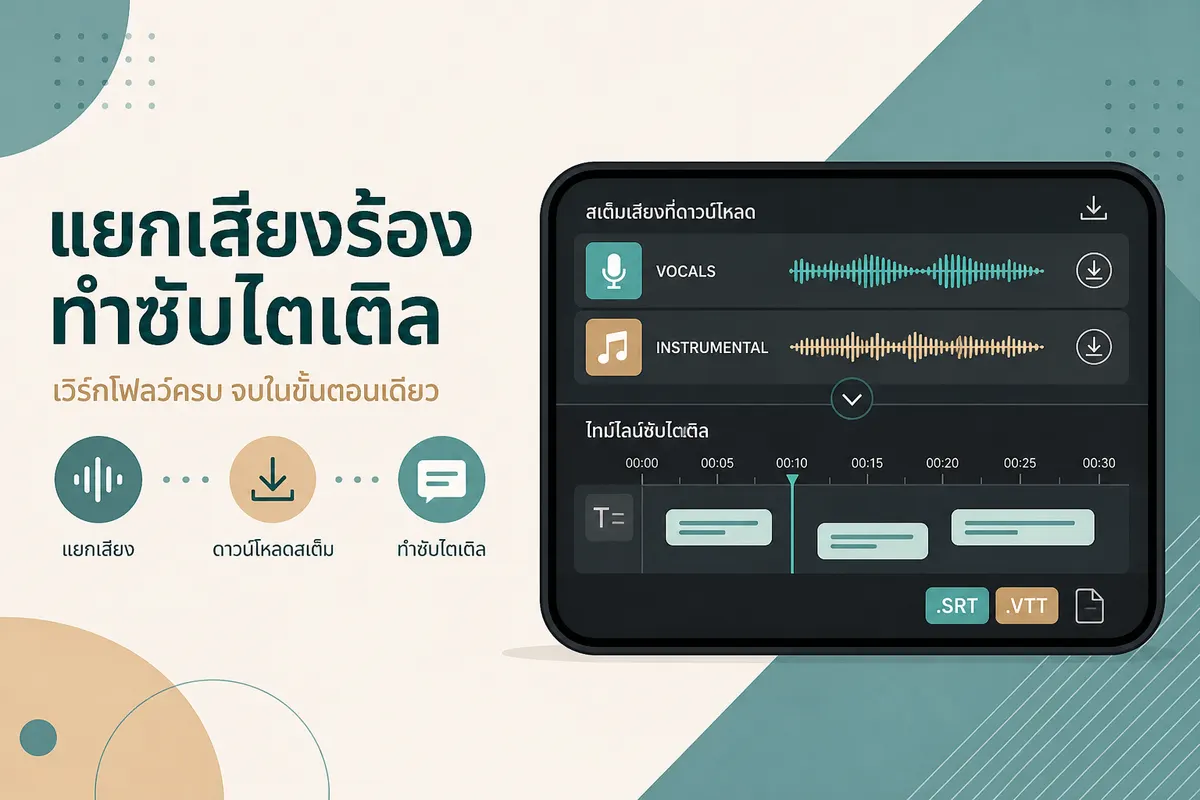
[00:00:15] Speaker 1: Welcome to today's meeting.
[00:00:23] Speaker 2: Thanks for having me.
[00:00:30] Speaker 1: Let's discuss the quarterly results.
Tools: Otter.ai, Rev, SayToWords
Privacy and Security Considerations
Data Privacy
Questions to Ask:
- Where is my audio stored?
- Is it encrypted?
- Who has access to my data?
- How long is it retained?
- Can I delete my data?
Best Practices
For Sensitive Content:
- ✓ Use on-device transcription (Windows, Mac built-in)
- ✓ Choose services with strong encryption
- ✓ Read privacy policies carefully
- ✓ Use enterprise-grade solutions for business
- ✓ Delete audio after transcription
For General Use:
- ✓ Major providers (Google, Microsoft) are generally safe
- ✓ Free tools are acceptable for non-sensitive content
- ✓ Check if data is used for AI training
Speech to Text vs. Other Technologies
Speech to Text vs. Voice Recognition
Speech to Text:
- Converts spoken words → written text
- Example: Transcribing an interview
Voice Recognition:
- Identifies WHO is speaking
- Example: "Hey Siri" knows your voice
Speech to Text vs. Natural Language Processing (NLP)
Speech to Text:
- Audio → Text conversion
NLP:
- Understanding the MEANING of text
- Example: Sentiment analysis, intent detection
Combined:
Modern systems often use both:
- STT converts audio to text
- NLP understands and acts on it
Future of Speech to Text
Emerging Trends
1. Emotion Detection
AI that can detect emotions in voice:
- Happiness, sadness, anger
- Sarcasm and irony
- Stress and urgency
2. Real-Time Translation
Speak in one language → Get text in another:
- Breaking language barriers
- Global communication
- Multilingual meetings
3. Improved Accuracy
Next-generation models reaching:
- 99%+ accuracy
- Better dialect support
- Understanding of context
4. Edge Processing
On-device AI that doesn't need internet:
- Better privacy
- Faster processing
- No internet required
Frequently Asked Questions
Q1: Is speech to text accurate?
A: Modern AI-based speech-to-text achieves 85-95% accuracy for clear audio. Professional-grade systems with good audio quality can reach 95-99% accuracy.
Factors affecting accuracy:
- Audio quality
- Speaker clarity
- Background noise
- Accent and dialect
- AI model quality
Q2: Can speech to text understand accents?
A: Yes, modern systems handle accents well, especially:
- Major English accents (US, UK, Australian, Indian)
- Regional variations within languages
- Non-native speakers
Best models for accents: OpenAI Whisper, Google Speech-to-Text
Q3: Is speech to text free?
A: Many options are free:
- Completely Free: Windows/Mac built-in, Google Docs
- Free Tier: SayToWords, Otter.ai (limited minutes)
- Paid: Professional tools ($10-50/month)
Q4: What's the best speech-to-text app for beginners?
A: For beginners, we recommend:
- SayToWords - Easy, accurate, no learning curve
- Google Docs Voice Typing - Free, simple, effective
- Built-in OS tools - Convenient for quick tasks
Q5: Can I use speech to text offline?
A: Some options support offline use:
- Windows/Mac built-in (with offline language packs)
- Some mobile apps
- However, online tools are generally more accurate
Q6: How do I add punctuation in speech to text?
A: Say punctuation marks aloud:
- "Hello comma my name is John period"
- "What's your name question mark"
- "This is great exclamation point"
Or use auto-punctuation features in advanced tools.
Q7: Can speech to text transcribe phone calls?
A: Yes, but:
- ✓ Get consent from all parties (legal requirement in many places)
- ✓ Use call recording app + transcription service
- ✓ Check local laws on call recording
Tools: Rev Call Recorder, Otter.ai, TapeACall
Q8: What file formats does speech to text support?
Common formats:
- MP3
- WAV
- M4A
- FLAC
- OGG
- MP4 (audio extraction)
Best format: WAV or FLAC (uncompressed, highest quality)
Getting Started Today
Your 5-Minute Quick Start
Step 1: Choose a tool
- Beginners: Start with SayToWords or Google Docs
- Quick tasks: Use built-in OS tools
- Meetings: Try Otter.ai
Step 2: Test with simple audio
- Record yourself saying a few sentences
- Transcribe and check accuracy
Step 3: Optimize your setup
- Find a quiet space
- Use a decent microphone
- Speak clearly
Step 4: Explore use cases
- Try transcribing a meeting
- Dictate an email
- Create content by speaking
Step 5: Build the habit
- Use it daily for small tasks
- Gradually increase usage
- Find your favorite tool
Conclusion
Speech-to-text technology is powerful, accessible, and easier to use than ever. Whether you're a student transcribing lectures, a professional documenting meetings, a content creator producing faster, or someone seeking accessibility solutions, STT can transform your workflow.
Key Takeaways:
- ✓ Speech-to-text converts spoken words to written text
- ✓ Modern AI achieves 85-95% accuracy
- ✓ Free tools are available and work well
- ✓ Good audio quality is essential
- ✓ Practice improves both your technique and results
Start using speech-to-text today at SayToWords.com - no signup required, completely free, and beginner-friendly.
Ready to get started? Try transcribing your first audio file with SayToWords and experience the power of AI-driven speech recognition technology.