Speech to Text for Beginners: A Complete Guide to Get Started

Eric King
Author
Introduction
Speech-to-text technology allows you to convert spoken audio into written text using AI. If you're new to speech recognition or transcription tools, this beginner-friendly guide will help you understand what speech to text is, how it works, and how to start using it today.
Whether you're a student looking to transcribe lectures, a content creator needing subtitles, or a professional wanting to automate meeting notes, this comprehensive guide covers everything you need to know to get started with speech-to-text technology.
What Is Speech to Text?
Speech to text (also called voice-to-text, automatic speech recognition, or ASR) is a technology that listens to human speech and converts it into readable text automatically.
Instead of typing manually, you can simply speak or upload an audio file, and AI will generate the text for you in seconds. This technology has evolved from basic voice commands to sophisticated systems that can handle multiple speakers, accents, and even background noise.
Key Terms You Should Know
- ASR (Automatic Speech Recognition): The technical term for speech-to-text technology
- Transcription: The process of converting audio to text
- Dictation: Speaking words that are converted to text in real-time
- Speaker Diarization: Identifying and separating different speakers in audio
- Timestamp: Marking when words are spoken in the audio
How Does Speech to Text Work?
For beginners, understanding how speech-to-text works can help you use it more effectively. The process involves several steps:
1. Audio Input
Record your voice or upload an audio file (MP3, WAV, M4A, etc.). The system captures the audio signal, which contains sound waves representing speech.
2. Preprocessing
The audio is cleaned and normalized to improve quality:
- Noise reduction: Removes background noise
- Normalization: Adjusts volume levels
- Format conversion: Converts to a standard format for processing
3. Feature Extraction
The system converts audio into numerical features that AI can understand:
- Spectrograms: Visual representations of sound frequencies
- MFCCs (Mel-frequency cepstral coefficients): Features that capture speech characteristics
- Phonemes: The smallest units of sound in speech
4. AI Processing
Modern AI models analyze the audio using deep learning:
- Acoustic Model: Recognizes sounds and phonemes
- Language Model: Predicts likely word sequences based on grammar and context
- Decoder: Combines acoustic and language models to generate text
5. Text Output
The spoken words are converted into editable text with:
- Punctuation: Automatically added for readability
- Capitalization: Proper sentence and word capitalization
- Timestamps: Optional markers showing when words were spoken
Modern AI models are trained on millions of hours of speech from diverse speakers, making them far more accurate than older systems.
Why Should Beginners Use Speech to Text?
Speech-to-text tools are not just for experts. Beginners benefit the most from this technology because it removes barriers to productivity and accessibility.
Key Benefits
⏱️ Save Time
- 10x faster than typing: Speak naturally at 150-200 words per minute vs. typing at 40-60 WPM
- No manual transcription: Convert hours of audio in minutes
- Instant results: Get text immediately after speaking or uploading
🧠 Reduce Errors
- Eliminate typos: No keyboard mistakes
- Consistent formatting: AI handles punctuation and capitalization
- Accurate transcription: Modern AI achieves 90%+ accuracy with clear audio
♿ Improve Accessibility
- For people with disabilities: Enables typing without using hands
- Hearing assistance: Provides captions and transcripts
- Learning support: Helps with note-taking and studying
🌍 Support Multiple Languages
- 100+ languages: Most tools support major world languages
- Automatic detection: AI can identify the language automatically
- Accent tolerance: Handles various accents and dialects
📄 Turn Audio into Searchable Text
- Easy searching: Find specific words or phrases in transcripts
- Content indexing: Organize and categorize audio content
- Data analysis: Extract insights from spoken content
💰 Cost-Effective
- Free options available: Many tools offer free tiers
- No manual transcription services: Save money on human transcribers
- Scalable: Process large volumes of audio efficiently
Common Use Cases for Beginners
If you're just starting, here are some easy and practical ways to use speech to text:
🎧 Audio to Text Conversion
Convert interviews, lectures, podcasts, or voice notes into text for easy reading and sharing.
Best for:
- Students transcribing lectures
- Journalists converting interviews
- Researchers documenting conversations
🎥 Video Transcription
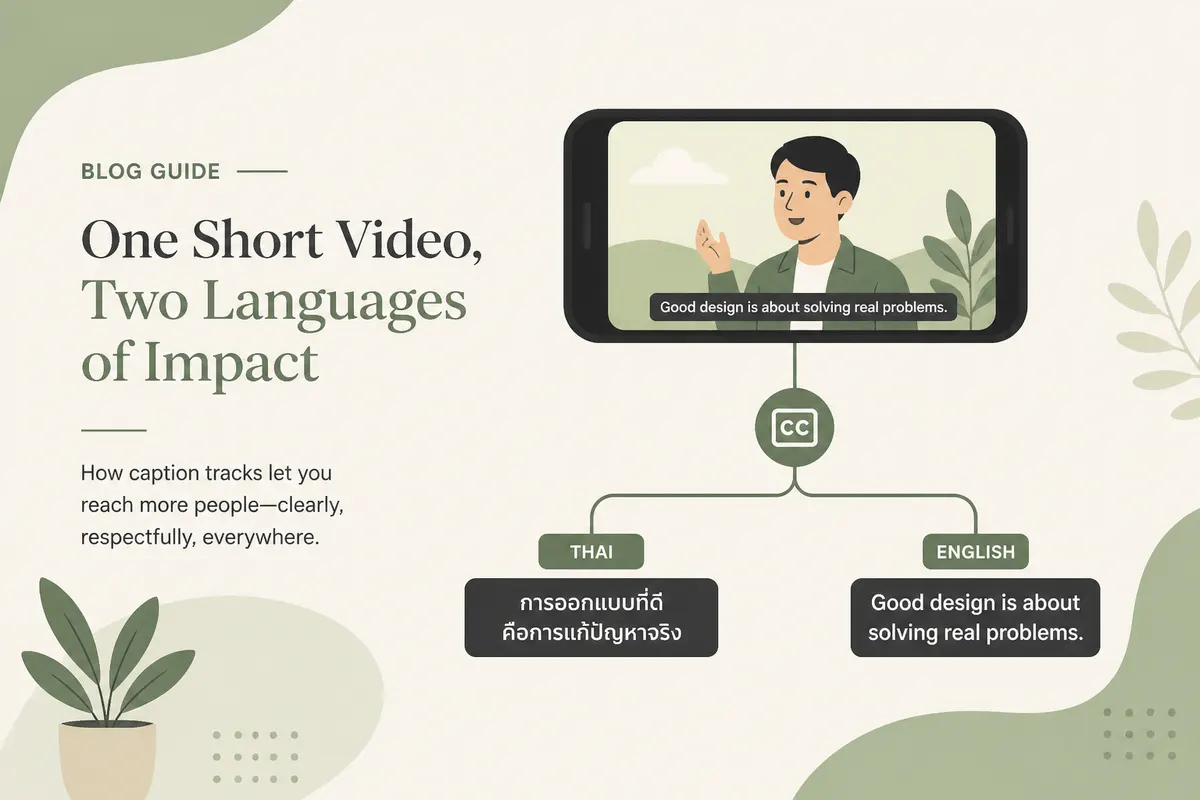
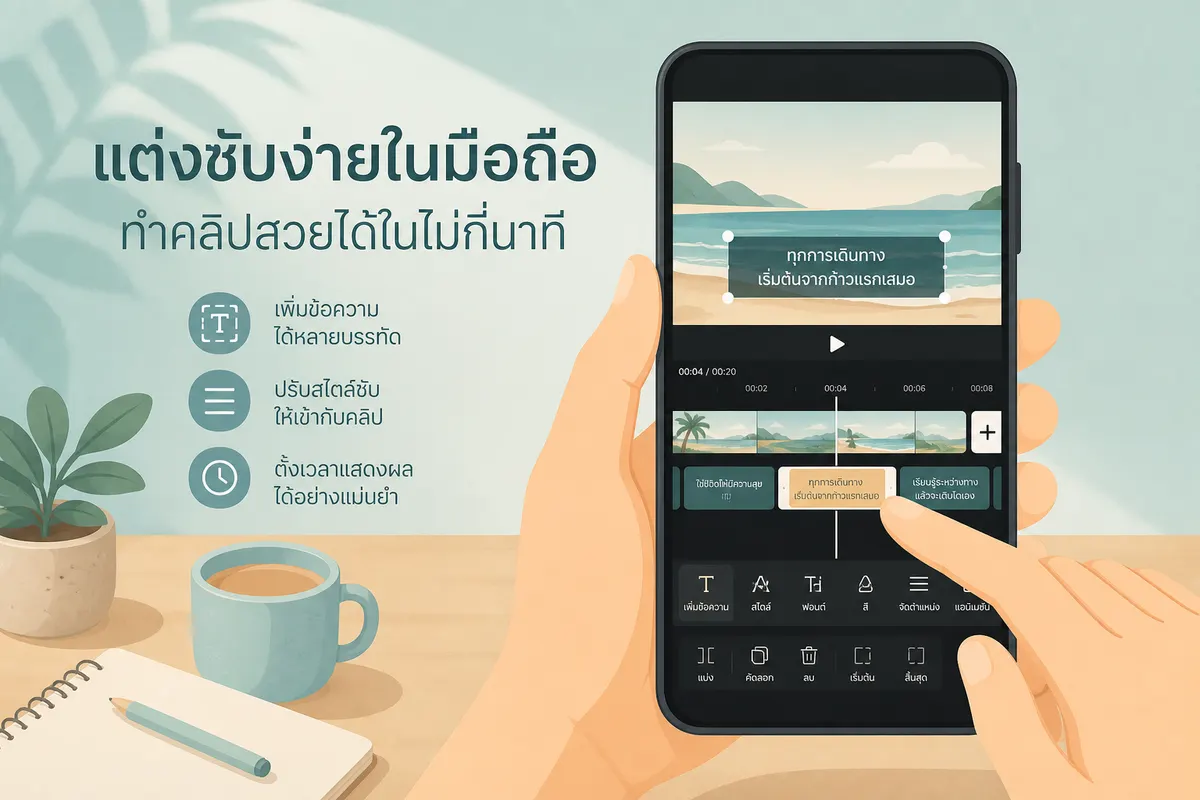
Create subtitles for YouTube videos, TikTok content, or online courses to improve accessibility and SEO.
Best for:
- Content creators
- Educators
- Video producers
📝 Notes & Ideas
Dictate ideas, to-do lists, or journal entries instead of typing them manually.
Best for:
- Writers and authors
- Students taking notes
- Professionals capturing thoughts
🧑💻 Work & Meetings
Automatically generate meeting notes, summaries, and action items from recorded meetings.
Best for:
- Remote workers
- Project managers
- Team leaders
📚 Content Creation
Transcribe podcasts, webinars, or live streams to create blog posts, articles, or social media content.
Best for:
- Bloggers
- Social media managers
- Content marketers
🎓 Education
Convert lectures, study sessions, or educational videos into searchable text notes.
Best for:
- Students
- Teachers
- Online course creators
What Audio Formats Are Supported?
Most speech-to-text tools support common audio formats. Here's what you need to know:
Supported Formats
| Format | Description | Best For |
|---|---|---|
| MP3 | Compressed, widely compatible | General use, smaller file sizes |
| WAV | Uncompressed, high quality | Professional audio, maximum accuracy |
| M4A | Apple's audio format | iOS recordings, podcasts |
| AAC | Advanced compression | High quality with smaller size |
| FLAC | Lossless compression | Professional workflows |
| OGG | Open-source format | Web applications |
Format Recommendations
- For best accuracy: Use WAV or FLAC (uncompressed formats)
- For convenience: MP3 or M4A work well for most use cases
- For file size: MP3 or AAC provide good balance
Important: Clear audio leads to better transcription accuracy, regardless of format.
How Accurate Is Speech to Text?
Understanding accuracy helps set realistic expectations. Modern speech-to-text systems can achieve impressive results, but accuracy depends on several factors:
Factors Affecting Accuracy
1. Audio Quality
- Clear audio: 90-95% accuracy
- Moderate noise: 80-90% accuracy
- Poor quality: 60-80% accuracy
2. Background Noise
- Quiet environment: Best results
- Moderate noise: Acceptable results
- Heavy noise: Reduced accuracy
3. Speaker Characteristics
- Clear speech: Higher accuracy
- Fast speech: May reduce accuracy
- Accents: Modern AI handles most accents well
- Multiple speakers: Requires speaker diarization
4. AI Model Quality
- Modern models (Whisper, Google): 90%+ accuracy
- Older systems: 70-85% accuracy
- Custom models: Can reach 95%+ for specific use cases
Real-World Accuracy Expectations
With clean audio and modern AI models, you can expect:
- Single speaker, clear audio: 90-95% accuracy
- Multiple speakers: 85-90% accuracy
- Noisy environment: 75-85% accuracy
- Heavy accents or technical terms: 70-85% accuracy
Tip: Always review and edit transcriptions for important content, as even 95% accuracy means 5 errors per 100 words.
How to Use Speech to Text Online (Step-by-Step Guide)
Here's a detailed, beginner-friendly guide to converting audio to text:
Method 1: Using Online Tools (Recommended for Beginners)
Step 1: Choose a Tool
Select a user-friendly online speech-to-text tool like SayToWords, which requires no installation.
Step 2: Upload or Record Audio
- Upload: Click "Upload" and select your audio file
- Record: Use the browser's microphone to record directly
Step 3: Select Language
- Choose the spoken language from the dropdown
- Or enable "Auto-detect" for automatic language identification
Step 4: Start Transcription
- Click "Transcribe" or "Convert"
- Wait for processing (usually 30 seconds to a few minutes)
Step 5: Review and Download
- Review the generated text
- Make any necessary edits
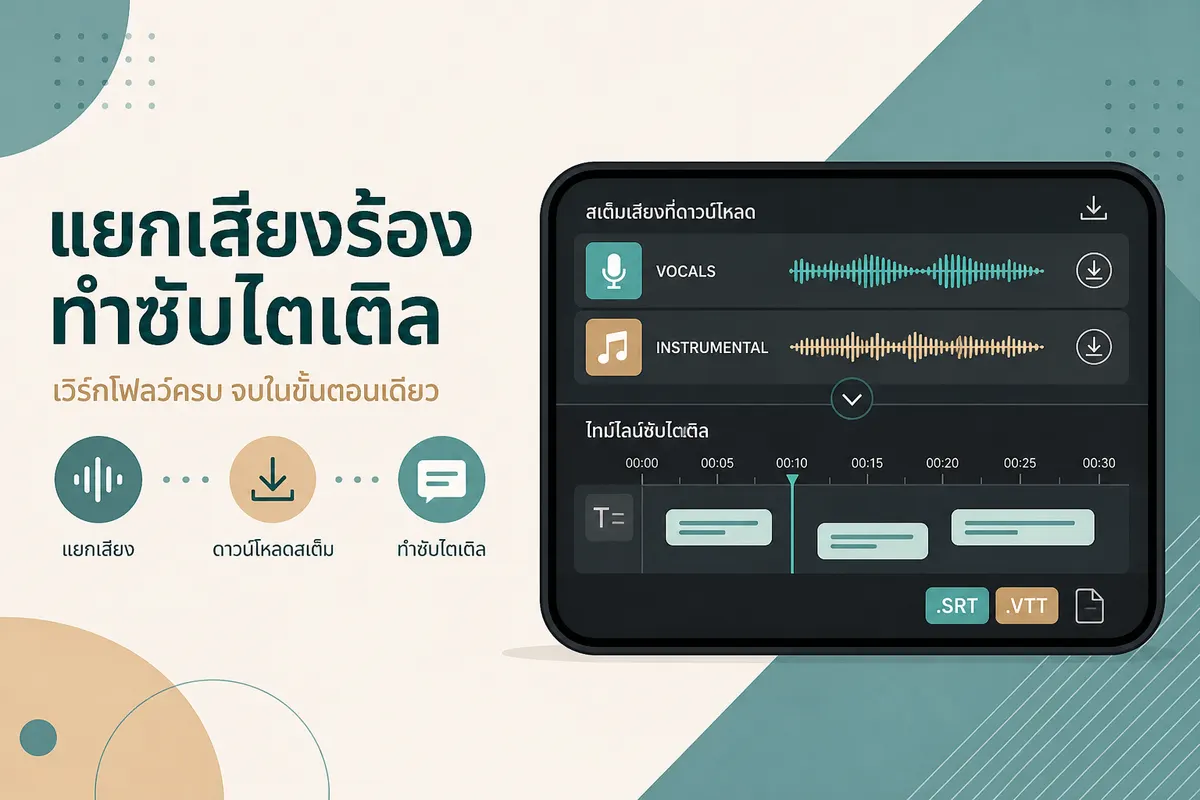
- Download as TXT, DOCX, or copy to clipboard
No installation or technical knowledge required!
Method 2: Using Mobile Apps
- Download a speech-to-text app (e.g., Otter.ai, Rev Voice Recorder)
- Open the app and tap the record button
- Speak clearly into your device
- The app transcribes in real-time
- Save or share the transcript
Method 3: Using Desktop Software
- Install software like Dragon NaturallySpeaking or Windows Speech Recognition
- Set up your microphone
- Start dictation mode
- Speak naturally, and text appears in real-time
Tips to Improve Speech-to-Text Results
Follow these practical tips to get the best transcription results:
Recording Tips
Environment
- ✅ Use a quiet environment: Minimize background noise
- ✅ Avoid echo: Record in rooms with soft furnishings
- ✅ Close windows: Reduce external noise
- ✅ Turn off notifications: Prevent interruptions
Speaking
- ✅ Speak clearly and naturally: Don't over-enunciate
- ✅ Maintain consistent volume: Avoid whispering or shouting
- ✅ Pause between sentences: Helps with punctuation
- ✅ Avoid overlapping voices: One speaker at a time
Equipment
- ✅ Use quality microphones: Better than built-in laptop mics
- ✅ Position microphone correctly: 6-12 inches from mouth
- ✅ Use pop filters: Reduce plosive sounds (p, b, t)
- ✅ Check audio levels: Avoid clipping or distortion
Audio File Tips
- ✅ Use high-quality formats: WAV or FLAC for best results
- ✅ Ensure clear audio: Remove background noise if possible
- ✅ Check file integrity: Make sure audio isn't corrupted
- ✅ Normalize volume: Consistent levels throughout
Post-Processing Tips
- ✅ Review and edit: Always check transcriptions
- ✅ Add punctuation: AI may miss some punctuation
- ✅ Fix proper nouns: Names and technical terms may need correction
- ✅ Format consistently: Use consistent formatting styles
Is Speech to Text Free?
Many tools offer free options, making it accessible for beginners:
Free Options
- Free tiers: Most tools offer limited free usage
- Trial periods: Test premium features for free
- Open-source tools: Completely free, self-hosted options
- Browser-based tools: No installation required
Paid Options
- Subscription plans: Monthly or annual subscriptions
- Pay-per-use: Pay only for what you transcribe
- Enterprise plans: For businesses with high volume
Cost Comparison
| Service Type | Cost | Best For |
|---|---|---|
| Free online tools | $0 | Beginners, occasional use |
| Freemium tools | $0-20/month | Regular users |
| Professional services | $50-200/month | Businesses, high volume |
| Enterprise solutions | Custom pricing | Large organizations |
Recommendation for beginners: Start with free tools like SayToWords to test the technology before investing in paid services.
Speech to Text vs Voice Typing: What's the Difference?
Understanding the difference helps you choose the right tool:
| Feature | Speech to Text | Voice Typing |
|---|---|---|
| Long Audio Files | ✅ Yes (hours) | ❌ No (real-time only) |
| Multiple Speakers | ✅ Yes | ❌ Limited |
| File Upload | ✅ Yes | ❌ No |
| Offline Processing | ✅ Some tools | ❌ No |
| Accuracy | High (AI-based) | Medium (real-time) |
| Use Case | Transcription | Dictation |
| Best For | Recorded audio | Live typing |
When to Use Speech to Text
- Converting recorded audio files
- Transcribing long recordings
- Processing multiple speakers
- Creating subtitles or transcripts
When to Use Voice Typing
- Real-time dictation
- Quick notes
- Hands-free typing
- Mobile use
Popular Speech-to-Text Tools for Beginners
Here are some beginner-friendly tools to get started:
1. SayToWords
- Best for: Beginners, general use
- Features: Easy interface, multiple languages, file upload
- Pricing: Free tier available
- Why choose: No installation, works in browser
2. Google Docs Voice Typing
- Best for: Quick notes, documents
- Features: Real-time transcription, free
- Pricing: Free with Google account
- Why choose: Integrated with Google Docs
3. Otter.ai
- Best for: Meetings, interviews
- Features: Speaker identification, real-time transcription
- Pricing: Free tier + paid plans
- Why choose: Great for meeting notes
4. Microsoft Word Dictate
- Best for: Document creation
- Features: Built into Word, real-time
- Pricing: Requires Office 365
- Why choose: Integrated workflow
5. Apple Dictation
- Best for: Mac/iOS users
- Features: Built-in, works offline
- Pricing: Free
- Why choose: Native integration
Common Challenges and Solutions
Challenge 1: Low Accuracy
Problem: Transcription has many errors
Solutions:
- Improve audio quality
- Use a quieter environment
- Speak more clearly
- Try a different tool or model
Challenge 2: Background Noise
Problem: Noise interferes with transcription
Solutions:
- Use noise reduction software
- Record in quieter environments
- Use directional microphones
- Enable noise cancellation features
Challenge 3: Multiple Speakers
Problem: Difficult to distinguish speakers
Solutions:
- Use tools with speaker diarization
- Record speakers separately if possible
- Use high-quality microphones for each speaker
- Manually edit to identify speakers
Challenge 4: Technical Terms
Problem: Specialized vocabulary not recognized
Solutions:
- Add custom vocabulary if supported
- Manually edit technical terms
- Use industry-specific models
- Provide context in audio
Challenge 5: Accents
Problem: Accents reduce accuracy
Solutions:
- Use tools with accent support
- Speak more slowly
- Enunciate clearly
- Try different language models
Getting Started: Your First Transcription
Ready to try speech-to-text? Here's a simple exercise:
Exercise: Transcribe a Short Recording
- Record 30 seconds of yourself speaking about your day
- Upload to SayToWords or another tool
- Select your language
- Click transcribe
- Review the results
What to notice:
- How accurate was it?
- What errors occurred?
- How long did it take?
This hands-on experience will help you understand the technology better.
FAQ: Frequently Asked Questions
Q1: How long does transcription take?
A: Processing time depends on audio length and tool used. Generally:
- 1 minute of audio = 10-30 seconds of processing
- Real-time tools transcribe as you speak
- Batch processing handles longer files
Q2: Can speech-to-text work offline?
A: Some tools offer offline capabilities, but most require internet connection for cloud-based AI processing. Desktop software like Dragon can work offline.
Q3: Is my audio data secure?
A: Reputable tools use encryption and privacy policies. Check:
- Data encryption in transit and at rest
- Privacy policy and data retention
- Option to delete data after processing
- Compliance with GDPR, HIPAA if needed
Q4: Can it handle multiple languages in one file?
A: Some advanced tools support multilingual transcription, but most work best with single-language audio. For mixed languages, you may need to process segments separately.
Q5: What's the maximum file size?
A: Limits vary by tool:
- Free tiers: Usually 25-100 MB
- Paid plans: 500 MB - 2 GB or more
- Enterprise: Custom limits
Q6: Can I edit transcriptions?
A: Yes! All tools allow editing. You can:
- Edit directly in the tool
- Download and edit in word processors
- Use editing features for corrections
Q7: Does it work with video files?
A: Many tools can extract audio from video files (MP4, MOV, etc.) and transcribe it. Some tools also provide video transcription with timestamps.
Q8: How do I improve accuracy for my specific use case?
A:
- Use high-quality audio recording
- Choose tools optimized for your language/accent
- Add custom vocabulary if supported
- Review and correct common errors
- Use industry-specific models when available
Q9: Can speech-to-text handle music or songs?
A: Speech-to-text is designed for spoken words, not music. It may transcribe lyrics if vocals are clear, but results vary. For music transcription, use specialized tools.
Q10: What's the difference between free and paid tools?
A: Free tools often have:
- Limited file sizes
- Fewer features
- Lower accuracy models
- Processing delays
Paid tools typically offer:
- Larger file support
- Higher accuracy
- Advanced features (speaker ID, timestamps)
- Faster processing
- Priority support
Conclusion
Speech-to-text technology makes working with audio simple—even for beginners. Whether you're a student, creator, or professional, converting speech into text can save time and boost productivity.
Key Takeaways:
✅ Speech-to-text is accessible: No technical expertise required
✅ Multiple use cases: From notes to professional transcription
✅ Free options available: Start without investment
✅ High accuracy possible: With good audio and modern tools
✅ Easy to use: Simple upload and click workflow
✅ Multiple use cases: From notes to professional transcription
✅ Free options available: Start without investment
✅ High accuracy possible: With good audio and modern tools
✅ Easy to use: Simple upload and click workflow
If you're just starting, try a simple online speech-to-text tool like SayToWords and experience how easy it is to turn voice into words. The technology has never been more accessible, and there's no better time to get started.
Next Steps:
- Choose a tool that fits your needs
- Try transcribing a short audio file
- Experiment with different audio qualities
- Explore advanced features as you become comfortable
Remember, practice makes perfect. The more you use speech-to-text, the better you'll understand its capabilities and limitations, allowing you to use it more effectively in your workflow.
Ready to get started? Try SayToWords today and experience the power of AI-powered speech-to-text transcription.