How to Turn Phone Recording into Text Using SayToWords (Step-by-Step Guide)

Eric King
Author
Introduction
Recording audio on your phone is easy—but converting that recording into accurate, editable text is what really boosts productivity.
Whether you record:
- Voice memos on iPhone
- Android voice recordings
- Interviews, meetings, or ideas on the go
SayToWords makes it simple to turn phone recordings into text using powerful AI speech-to-text models.
This guide will walk you through how to transcribe phone recordings step by step using SayToWords.
What Is SayToWords?
SayToWords is an AI-powered transcription platform that converts audio and video files into text quickly and accurately.
Key benefits:
- Supports phone recordings (MP3, M4A, WAV, etc.)
- High accuracy with modern AI large models
- Multi-language transcription
- Speaker recognition
- Export to TXT, DOCX, PDF, SRT, and more
Free users can transcribe multiple files daily, while paid plans unlock higher limits and advanced features.
How to Turn Phone Recording into Text with SayToWords
📌 Step 1: Record Audio on Your Phone
Use your phone’s built-in recorder:
- iPhone: Voice Memos
- Android: Recorder or Google Recorder
Tips for best results:
- Record in a quiet environment
- Speak clearly
- Keep the phone close to the speaker
📌 Step 2: Upload Your Phone Recording to SayToWords
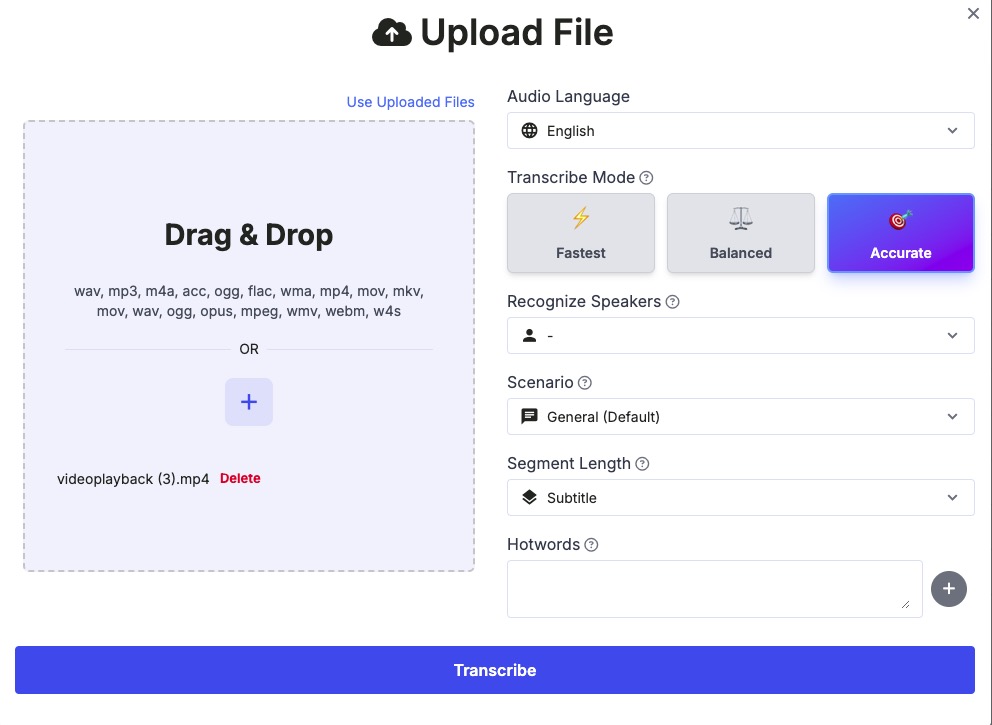
After logging in, go to the Dashboard and click:
“Transcribe Audio / Video”
You can upload phone recordings in formats like:
- MP3
- WAV
- M4A
- MP4
- MOV
Upload methods:
- Drag & drop
- Click the “+” button
- Upload directly from your phone or computer
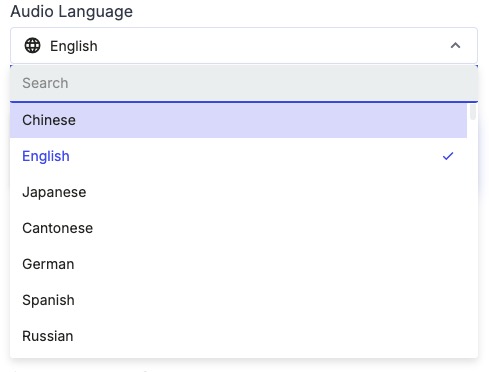
📌 Step 3: Choose the Audio Language
Select the language spoken in your phone recording, such as:
- English
- Chinese
- Japanese
- Korean
- Spanish
Choosing the correct language significantly improves transcription accuracy.
📌 Step 4: Choose the Transcription Model
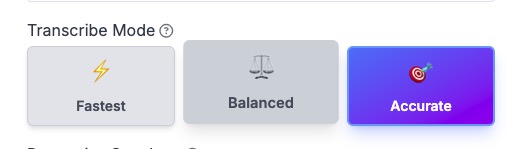
SayToWords offers multiple AI transcription models:
- Fastest Model – ultra-fast, good for short recordings
- Balanced Model – speed + accuracy
- Accurate Model (Pro) – highest accuracy, ideal for long or noisy phone recordings
For interviews, meetings, or outdoor recordings, we recommend the Pro Model.
📌 Step 5: Enable Speaker Recognition (Optional)
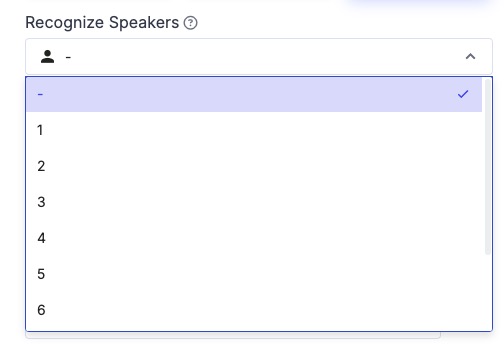
If your phone recording includes multiple speakers, enable Speaker Recognition.
Options:
- Manually set the number of speakers
- Leave it blank for automatic detection
This feature creates cleaner transcripts with speaker labels.
📌 Step 6: Start Transcribing Your Phone Recording
Click Transcribe.
SayToWords will process your file and generate text automatically.
Once completed, the transcript will appear in your Transcriptions List.
Once completed, the transcript will appear in your Transcriptions List.
📌 Step 7: Edit and Review the Transcript
Open the completed transcription to:
- Edit text
- Fix names or technical terms
- Adjust timestamps
- Rename speakers
This makes it easy to turn raw phone recordings into polished text.
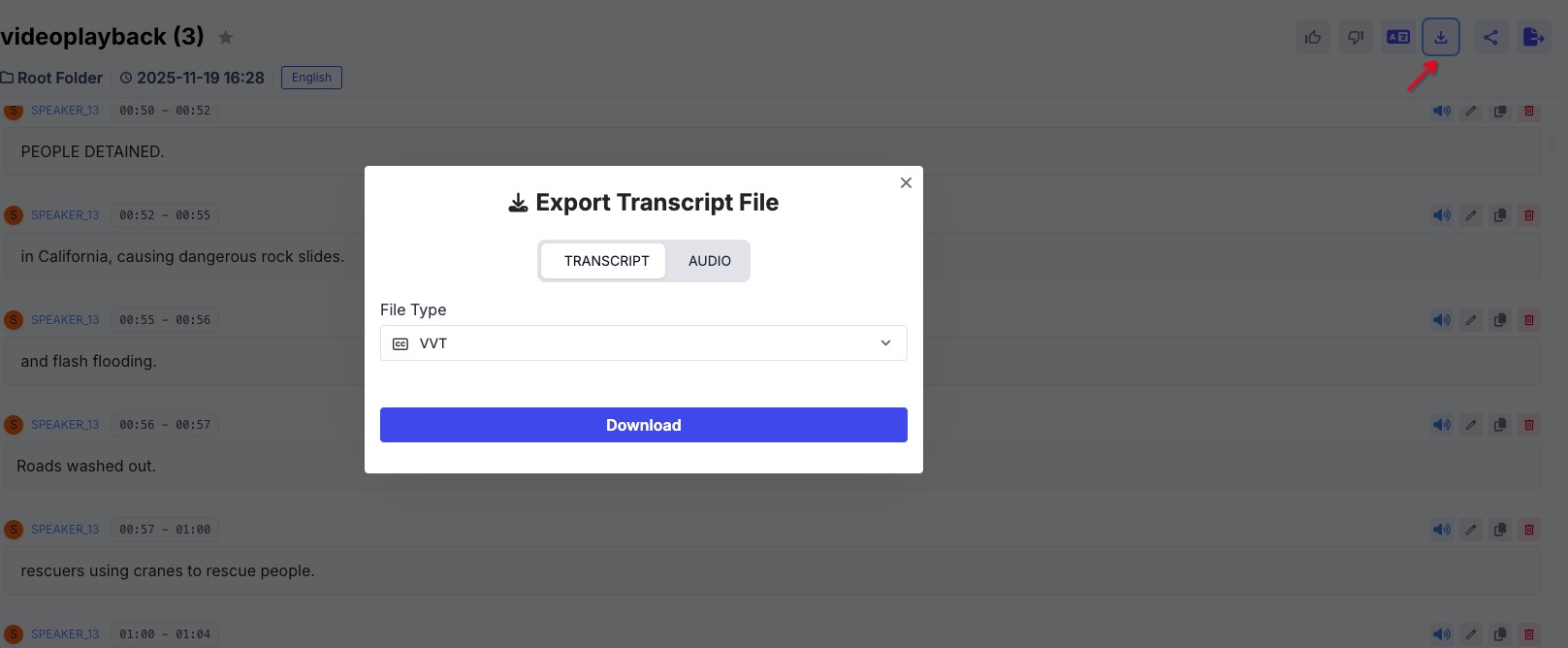
📌 Step 8: Export Your Text
Export your transcription in multiple formats:
- TXT
- DOCX (Word)
- SRT (Subtitles)
- VTT
Perfect for notes, blogs, subtitles, or documentation.
Common Use Cases for Phone Recording Transcription
- Students converting lectures into notes
- Journalists transcribing interviews
- Podcasters creating show notes
- Creators turning voice ideas into articles
- Businesses generating meeting minutes
Tips for Better Phone Recording Transcription
- Record in a quiet place
- Avoid overlapping speech
- Speak at a steady pace
- Choose the correct language and model
- Use speaker recognition when needed
Final Thoughts
Turning phone recordings into text no longer requires manual typing or expensive services.
With SayToWords, you can convert phone audio into accurate, editable text in just a few minutes—anytime, anywhere.
🎧➡️📝
Record on your phone. Upload to SayToWords. Get text instantly.
Record on your phone. Upload to SayToWords. Get text instantly.
FAQ
Can I transcribe phone recordings for free?
Yes. SayToWords offers free daily transcription limits.
What phone audio formats are supported?
MP3, WAV, M4A, MP4, MOV, and more.
Is SayToWords accurate for mobile recordings?
Yes. With clear audio, accuracy can exceed 95%.
Start transcribing your phone recordings today with SayToWords.