Getting Started: How to Turn Zoom Audio into Text with SayToWords
2025-12-30Tutorial

Eric King
Author
Welcome to SayToWords!
SayToWords helps you convert Zoom meeting recordings into accurate text using modern AI large models.
It’s fast, reliable, and easy to use—perfect for meetings, interviews, lectures, and team collaboration.
It’s fast, reliable, and easy to use—perfect for meetings, interviews, lectures, and team collaboration.
In this quick tutorial, you’ll learn how to turn Zoom audio into text step by step using SayToWords.
Let’s get started!
Let’s get started!
📌 Step 1: Get Your Zoom Recording
First, make sure you have your Zoom recording file.
You can get it from:
- Zoom Cloud Recordings
- Download the meeting as MP4 (video) or M4A (audio)
- Zoom Local Recordings
- Saved automatically on your computer as MP4 + M4A
Both formats are fully supported by SayToWords.
📌 Step 2: Go to the SayToWords Dashboard
After signing up or logging in, you’ll land on the main dashboard.
Click “Transcribe Audio / Video” to start a new transcription task.
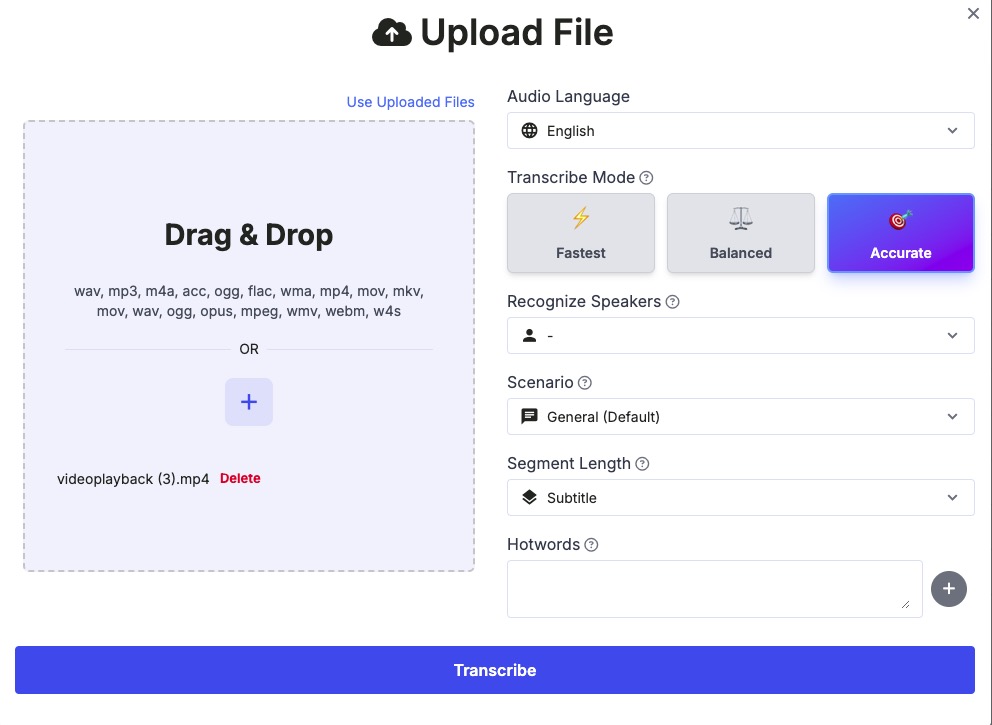
📌 Step 3: Upload Your Zoom Audio or Video File
You can upload Zoom recordings in formats such as:
- MP4
- M4A
- MP3
- WAV
Upload methods:
- Drag & Drop your Zoom file
- Click the “+” button to select a file
Once uploaded, SayToWords will prepare your Zoom recording for transcription.
📌 Step 4: Choose the Audio Language
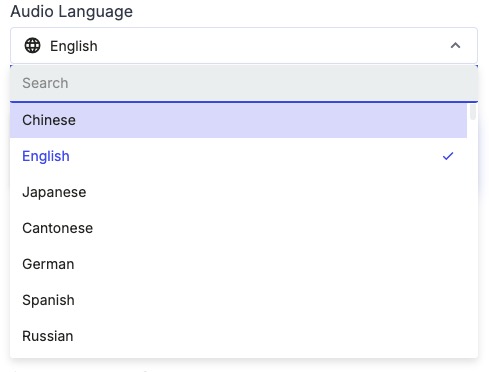
Select the language spoken in your Zoom meeting, for example:
- English
- Chinese
- Japanese
- Korean
- Spanish
- …
Choosing the correct language is critical for high transcription accuracy.
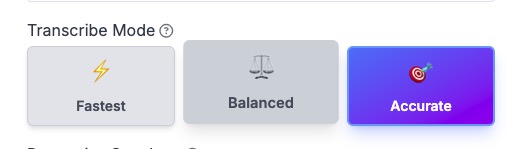
📌 Step 5: Choose the Transcription Model
SayToWords offers multiple AI transcription models:
- Fastest Model – quick results for short Zoom meetings
- Balanced Model – good speed and accuracy
- Accurate Model (Pro) – best choice for long meetings or noisy calls
For most Zoom meetings, we recommend the Pro Model for the highest accuracy.
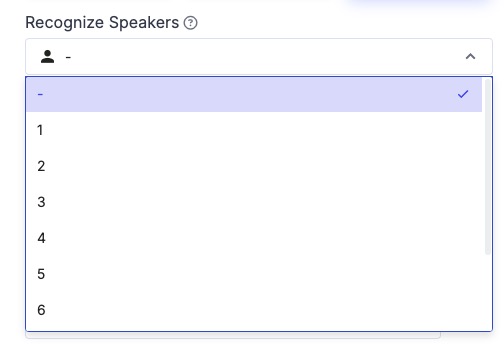
📌 Step 6: Enable Speaker Recognition (Recommended)
Zoom meetings usually include multiple speakers.
Enable Speaker Recognition to:
- Automatically detect different speakers
- Label each speaker in the transcript
- Make meeting notes easier to read
You can:
- Set the number of speakers manually
- Or leave it blank to let SayToWords auto-detect
📌 Step 7: Start Transcribing Your Zoom Audio
Click the Transcribe button.
SayToWords will process your Zoom recording automatically.
Once completed, the transcription will appear in your Transcriptions List.
Once completed, the transcription will appear in your Transcriptions List.
📌 Step 8: Open and Edit Your Zoom Transcript
Click on your completed transcription to open the editor.
You can:
- View the full Zoom meeting transcript
- Edit text segments
- Correct names or terms
- Adjust timestamps
- Rename speakers
This makes it easy to turn Zoom meetings into clean, shareable notes.
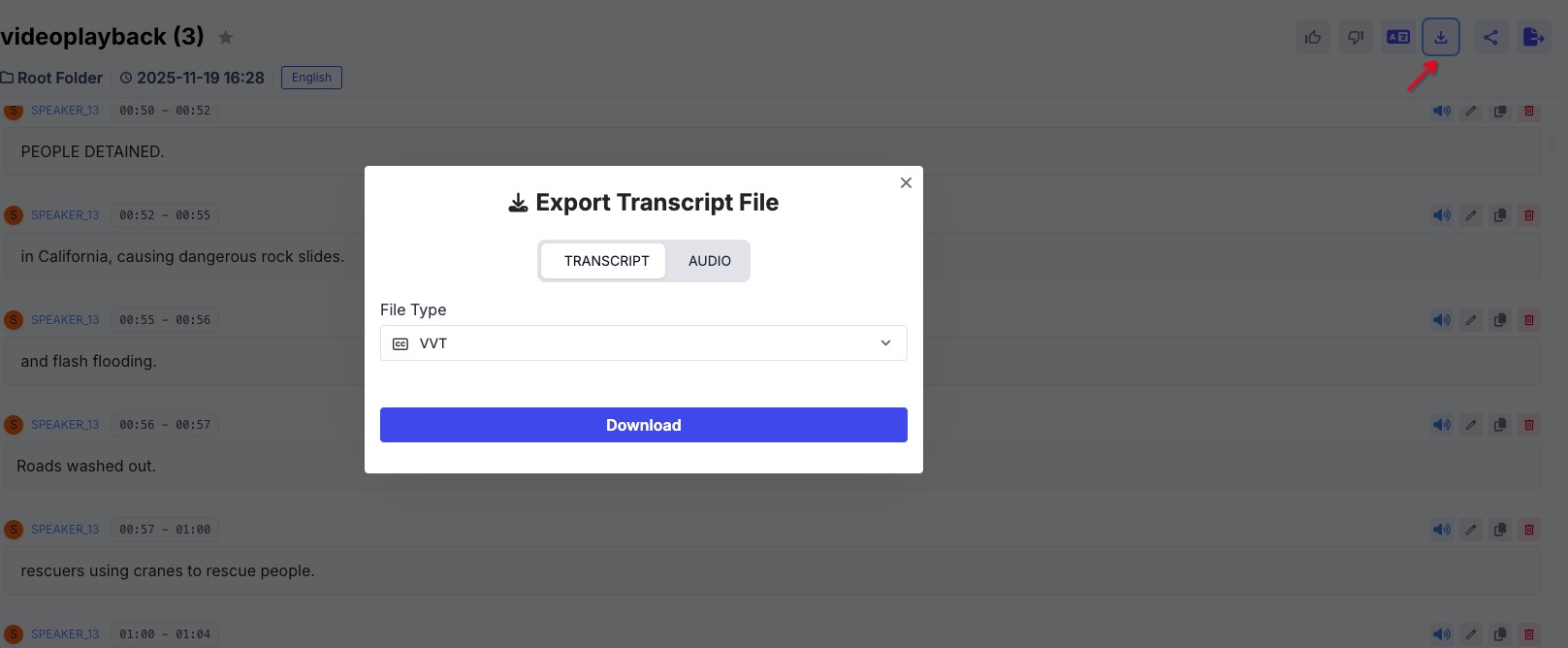
📌 Step 9: Export Your Zoom Transcript
From the top-right tools panel, export your transcript in formats such as:
- TXT
- DOCX (Word)
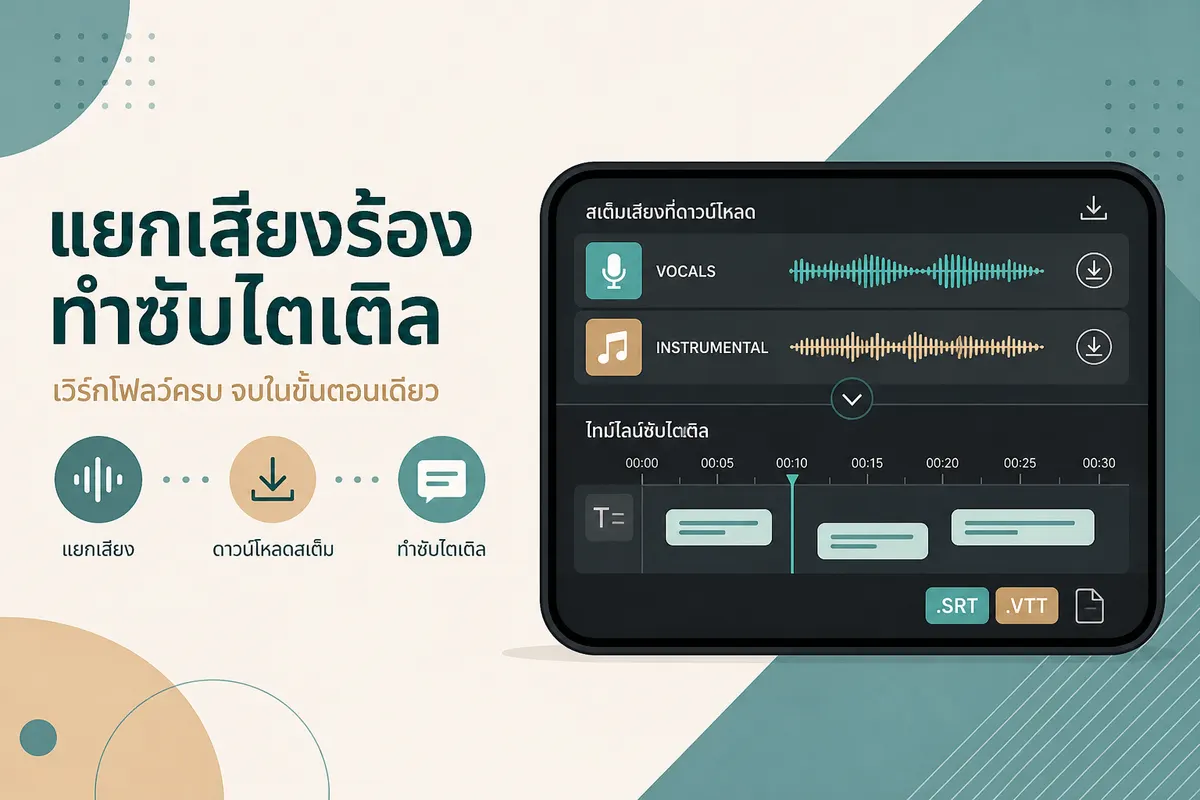
- SRT (Subtitles)
- VTT
Perfect for:
- Meeting minutes
- Internal documentation
- Training materials
- Archived Zoom calls
🎉 All Done!
You’ve successfully turned your Zoom audio into text using SayToWords.
You can continue uploading more Zoom recordings and explore features like translation, summarization, and AI-powered editing.
You can continue uploading more Zoom recordings and explore features like translation, summarization, and AI-powered editing.
Happy transcribing! 🎧✍️