Getting Started: How to Transcribe Speech to Text with SayToWords
2025-11-20Tutorial

Eric King
Author
Welcome to SayToWords!
SayToWords converts your audio and video files into text, powered by modern AI large models.
It's fast, highly accurate, and very easy to use. Free users can transcribe multiple files daily, and upgrading unlocks higher limits and advanced features.
It's fast, highly accurate, and very easy to use. Free users can transcribe multiple files daily, and upgrading unlocks higher limits and advanced features.
This quick tutorial will guide you through uploading and transcribing your first file.
Let’s get started!
Let’s get started!
📌 Step 1: Go to the Dashboard
After you sign up or log in, you’ll land on the main dashboard.
Click “Transcribe Audio / Video” to begin.
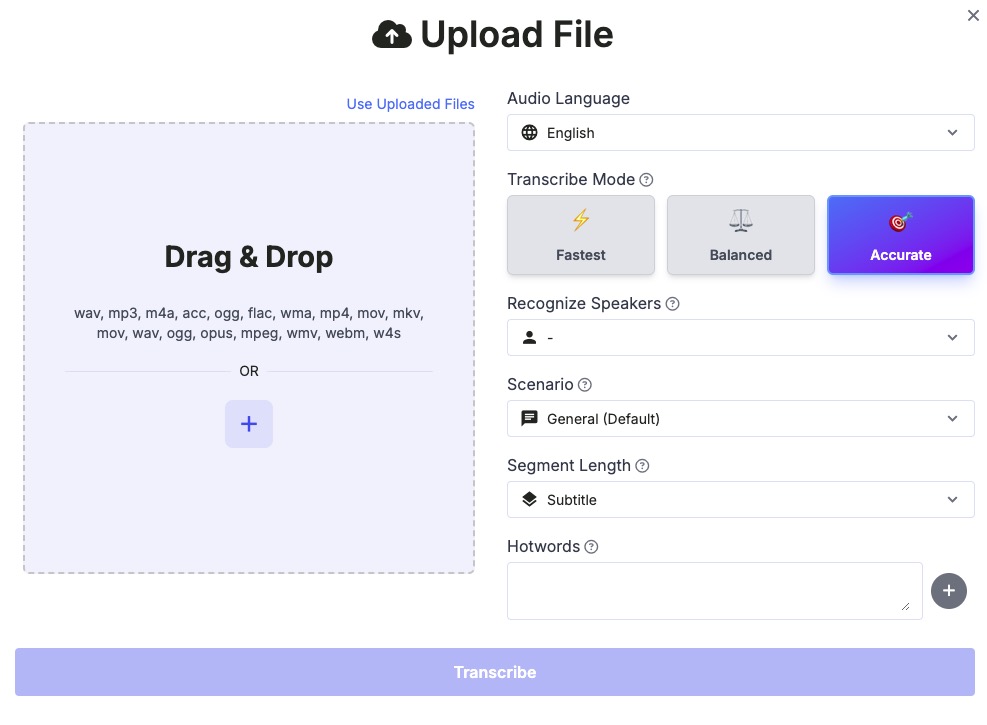
📌 Step 2: Upload Your File
You can upload audio or video in formats like MP3, WAV, M4A, MP4, MOV and more.
You can either:
- Drag & Drop your file
- Or click “+” button to select one from your computer
Once uploaded, SayToWords will prepare your file for transcription.
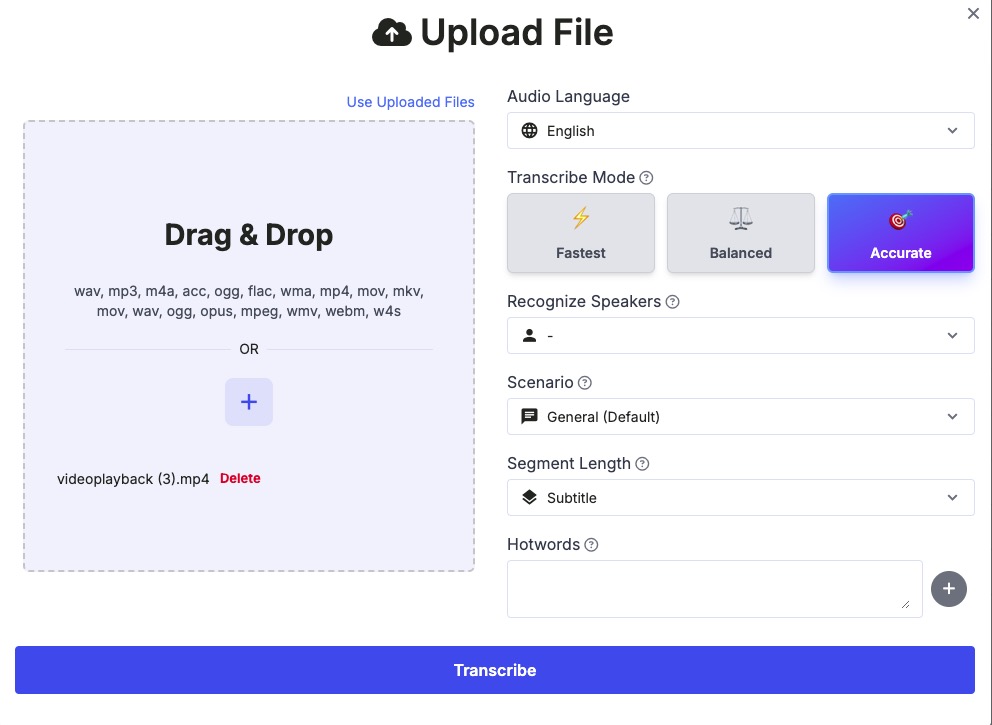
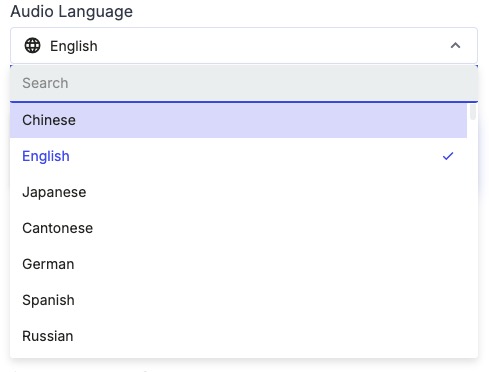
📌 Step 3: Choose Audio Language
Select the language spoken in your audio.
For example:
For example:
- English
- Chinese
- Japanese
- Korean
- Spanish
- …
Choosing the correct language ensures the highest accuracy.
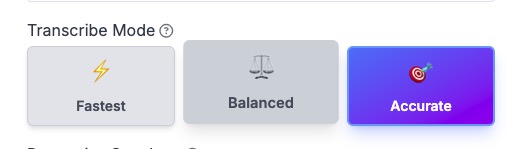
📌 Step 4: Choose the Transcription Model
SayToWords provides different AI models:
- Fatest Model – ultra-fast processing with solid accuracy
- Balanced Model – fast, good accuracy
- Accurate Model – highest accuracy, ideal for long content
We recommend using Pro Model for long or noisy audio.
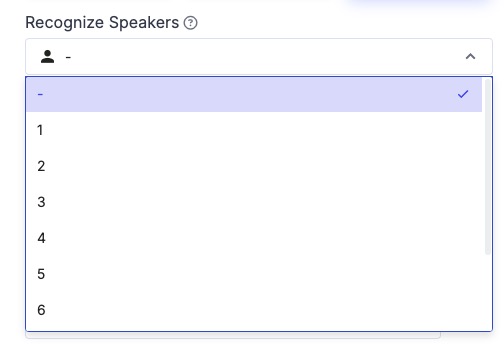
📌 Step 5: Enable Speaker Recognition
If your audio contains multiple speakers, you can enable Speaker Recognition.
You can:
- Set the number of speakers manually
- Leave it blank to let SayToWords automatically detect the number of speakers
This helps generate a cleaner, speaker-labeled transcript.
📌 Step 6: Start Transcription
Click the Transcribe button.
Your file will begin processing. You’ll be able to view the result as soon as it’s completed.
When finished, it will appear in your Transcriptions List.
📌 Step 7: Open and Edit Your Transcript
Click on your completed transcription to open it.
Inside the editor, you can:
- Click the transcription title to open and view the full transcript
- Edit text segments
- Adjust timestamps
- Correct speaker names
This makes it extremely easy to refine your transcript.
---
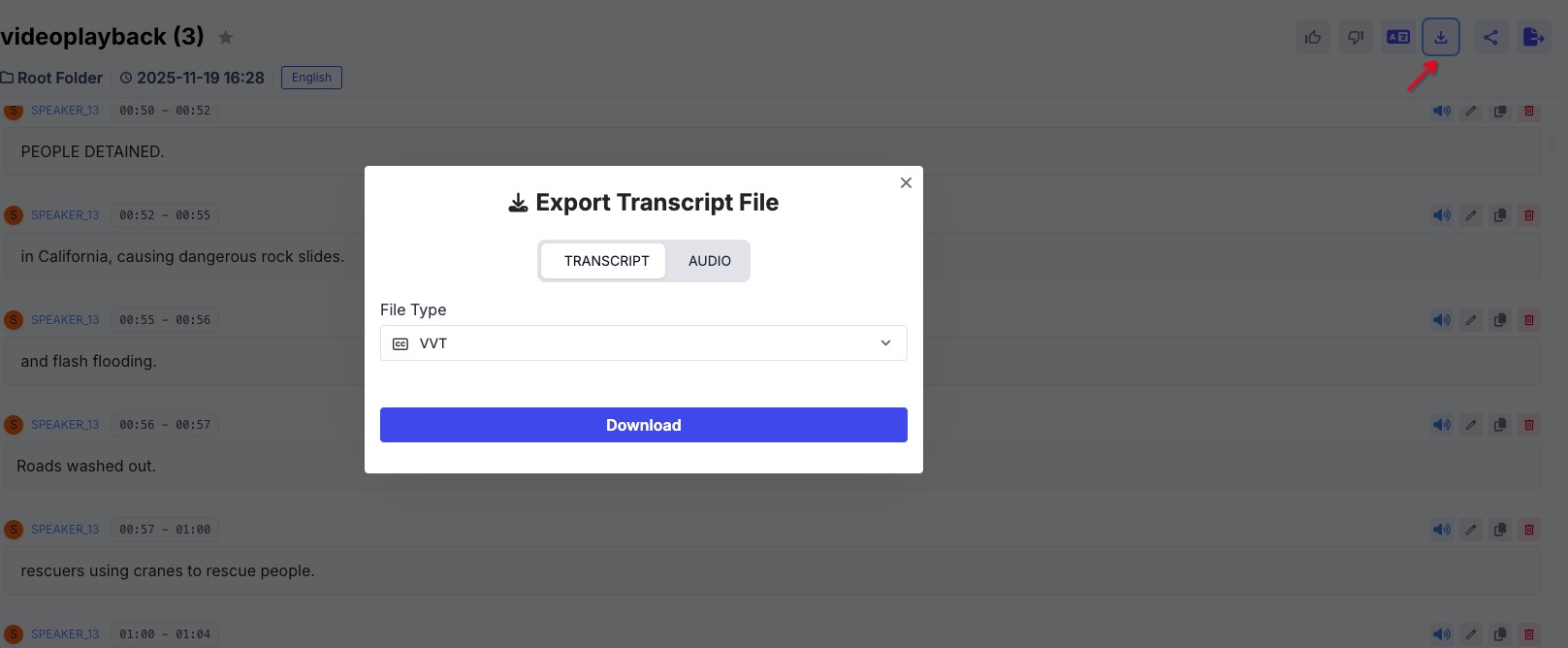
📌 Step 8: Export Your Text
On the top-right tools panel, you can export your transcript in formats like TXT, DOCX, or SRT.
- TXT
- DOCX (Word)
- SRT (Subtitles)
- VTT
🎉 All Done!
You've now successfully transcribed your first file using SayToWords.
You can continue uploading more files and exploring translation, summarization, and other AI tools.
You can continue uploading more files and exploring translation, summarization, and other AI tools.
Happy transcribing! 🎧✍️