How to Convert Voice to Text with Timestamps: Complete Guide

Eric King
Author
Introduction
Converting voice to text is useful—but adding timestamps transforms simple transcription into a powerful tool for content creators, researchers, and professionals.
Timestamps tell you exactly when each word or phrase was spoken, enabling:
- Precise video editing
- Searchable transcripts
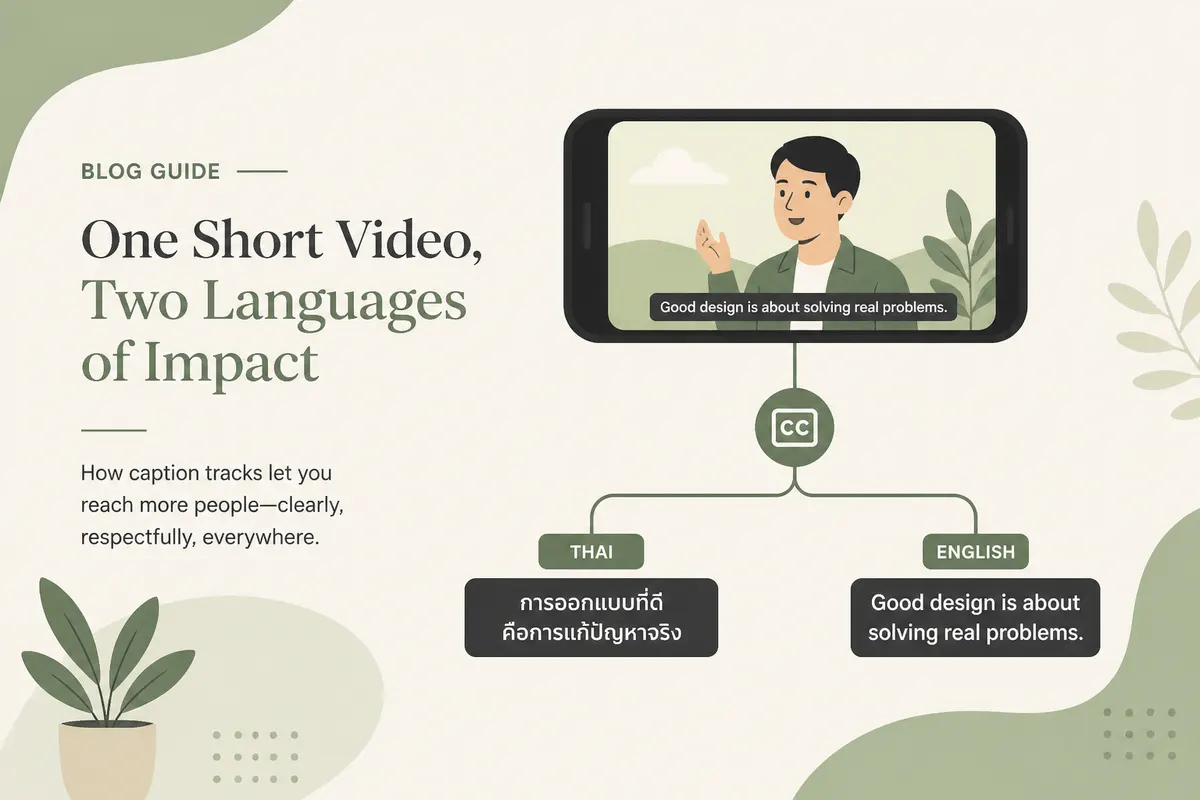
- Subtitle generation
- Meeting notes with time references
- Content repurposing
This guide explains how to convert voice to text with timestamps, why they matter, and the best tools for the job.
Problem: Why Timestamps Matter
The Challenge Without Timestamps
Traditional transcription gives you text, but no time information:
Speaker 1: Welcome everyone to today's meeting.
Speaker 2: Thanks for joining us.
Speaker 1: Let's start with the quarterly review.
Problems:
- ❌ Can't find specific moments in audio/video
- ❌ Difficult to create subtitles
- ❌ Hard to reference exact quotes
- ❌ No way to jump to specific sections
- ❌ Limited editing capabilities
What Timestamps Solve
With timestamps, you get precise time markers:
[00:00:05] Speaker 1: Welcome everyone to today's meeting.
[00:00:12] Speaker 2: Thanks for joining us.
[00:00:18] Speaker 1: Let's start with the quarterly review.
Benefits:
- ✅ Jump directly to any moment in audio/video
- ✅ Generate accurate subtitles (SRT, VTT)
- ✅ Reference exact quotes with time codes
- ✅ Edit videos with precision
- ✅ Create searchable, navigable transcripts
Solution: How to Get Timestamps
Method 1: Using SayToWords (Recommended)
SayToWords automatically generates timestamps for every word and segment when you transcribe audio or video.
Steps:
-
Upload your audio/video file
- Supports MP3, WAV, M4A, MP4, MOV, and more
- Drag & drop or click to upload
-
Select language and model
- Choose the spoken language
- Select transcription model (Fastest, Balanced, or Accurate)
-
Enable speaker recognition (optional)
- For multi-speaker audio
- Automatically labels speakers
-
Transcribe
- Click "Transcribe" and wait for processing
- Timestamps are generated automatically
-
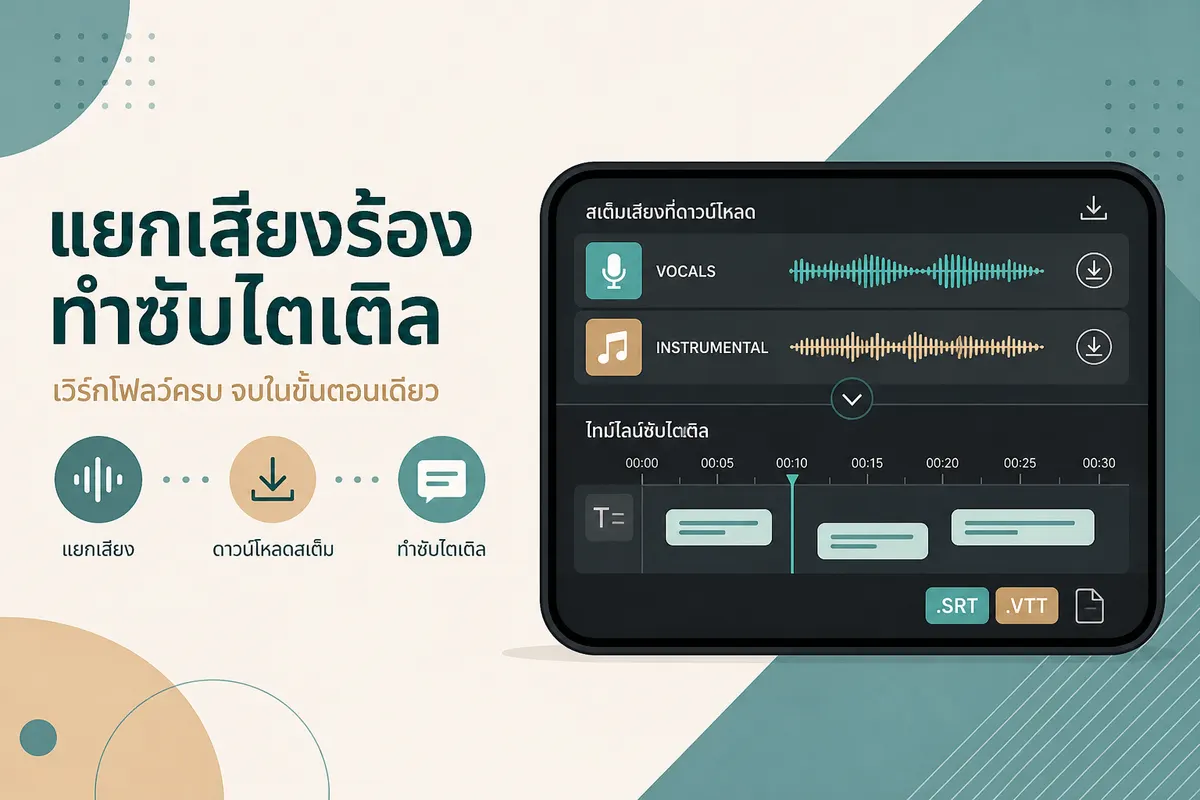
Export with timestamps
- SRT: Subtitle format with timestamps
- VTT: Web video text tracks
- TXT: Plain text with time markers
- DOCX: Word document with timestamps
- PDF: Formatted document with time codes
Method 2: Using OpenAI Whisper (Technical)
For developers, Whisper provides word-level and segment-level timestamps:
import whisper

# Load model
model = whisper.load_model("base")

# Transcribe with timestamps
result = model.transcribe(
    "audio.mp3",
    word_timestamps=True  # Enable word-level timestamps
)

# Access timestamps
for segment in result["segments"]:
    start = segment["start"]  # Start time in seconds
    end = segment["end"]      # End time in seconds
    text = segment["text"]    # Transcribed text

    print(f"[{start:.2f}s - {end:.2f}s] {text}")

    # Word-level timestamps
    if "words" in segment:
        for word_info in segment["words"]:
            word = word_info["word"]
            word_start = word_info["start"]
            word_end = word_info["end"]
            print(f"  {word}: {word_start:.2f}s - {word_end:.2f}s")
Method 3: Using Google Speech-to-Text API
Google's API provides timestamps but requires coding:
from google.cloud import speech_v1
from google.cloud.speech_v1 import enums

client = speech_v1.SpeechClient()

config = {
    "encoding": enums.RecognitionConfig.AudioEncoding.MP3,
    "sample_rate_hertz": 16000,
    "language_code": "en-US",
    "enable_word_time_offsets": True,  # Enable timestamps
}

with open("audio.mp3", "rb") as audio_file:
    content = audio_file.read()

audio = {"content": content}
response = client.recognize(config, audio)

for result in response.results:
    for alternative in result.alternatives:
        print(f"Transcript: {alternative.transcript}")
        for word_info in alternative.words:
            start_time = word_info.start_time.seconds + word_info.start_time.nanos / 1e9
            end_time = word_info.end_time.seconds + word_info.end_time.nanos / 1e9
            print(f"  {word_info.word}: {start_time:.2f}s - {end_time:.2f}s")
Why SayToWords
Advantages for Timestamped Transcription
1. Automatic Timestamp Generation
- ✅ No coding required
- ✅ Timestamps included by default
- ✅ Word-level and segment-level precision
2. Multiple Export Formats
- ✅ SRT: Industry-standard subtitle format
- ✅ VTT: Web-compatible video text tracks
- ✅ TXT: Plain text with time markers
- ✅ DOCX: Editable Word documents
- ✅ PDF: Professional formatted output
3. User-Friendly Interface
- ✅ Visual editor to adjust timestamps
- ✅ Easy editing of transcribed text
- ✅ Speaker labeling with timestamps
- ✅ No technical knowledge needed
4. High Accuracy
- ✅ Powered by advanced AI models
- ✅ Handles multiple languages
- ✅ Works with noisy audio
- ✅ Supports long-form content
5. Cost-Effective
- ✅ Free tier available
- ✅ Transparent pricing
- ✅ No per-minute API costs
- ✅ Unlimited file processing
Use Cases Where SayToWords Excels
Content Creators:
- Generate subtitles for YouTube videos
- Create searchable transcripts for podcasts
- Repurpose content with precise time references
Researchers:
- Transcribe interviews with time markers
- Analyze focus groups with timestamped quotes
- Document research sessions accurately
Professionals:
- Meeting notes with exact time references
- Conference transcription with timestamps
- Training session documentation
Accessibility:
- Create captions for video content
- Generate accessible transcripts
- Support hearing-impaired audiences
Example: Complete Workflow
Example: Transcribing a Podcast Episode
Let's walk through transcribing a 30-minute podcast episode with timestamps:
Step 1: Upload File
- File:
podcast-episode-42.mp3(30 minutes) - Format: MP3, 44.1kHz, stereo
Step 2: Configure Settings
- Language: English
- Model: Balanced (good accuracy and speed)
- Speaker Recognition: Enabled (2 speakers detected)
Step 3: Process Transcription
- Processing time: ~3 minutes
- Result: Full transcript with timestamps
Step 4: Review Output
The transcript includes timestamps like this:
[00:00:00] Host: Welcome to Tech Talk, I'm your host Sarah.
[00:00:05] Host: Today we're discussing AI transcription.
[00:00:12] Guest: Thanks for having me, Sarah. It's great to be here.
[00:00:18] Host: Let's start with the basics. What is speech-to-text?
[00:00:25] Guest: Speech-to-text converts spoken words into written text...
Step 5: Export Formats
SRT Format (for subtitles):
1
00:00:00,000 --> 00:00:05,000
Welcome to Tech Talk, I'm your host Sarah.

2
00:00:05,000 --> 00:00:12,000
Today we're discussing AI transcription.

3
00:00:12,000 --> 00:00:18,000
Thanks for having me, Sarah. It's great to be here.
VTT Format (for web players):
WEBVTT

00:00:00.000 --> 00:00:05.000
Welcome to Tech Talk, I'm your host Sarah.

00:00:05.000 --> 00:00:12.000
Today we're discussing AI transcription.
TXT Format (for reading):
[00:00:00] Host: Welcome to Tech Talk, I'm your host Sarah.
[00:00:05] Host: Today we're discussing AI transcription.
[00:00:12] Guest: Thanks for having me, Sarah. It's great to be here.
Step 6: Use Cases
- YouTube Upload: Use SRT file for automatic captions
- Blog Post: Extract quotes with timestamps for references
- Show Notes: Create searchable episode notes
- Social Media: Share timestamped highlights
Comparison: Solutions for Timestamped Transcription
SayToWords vs. Other Solutions
| Feature | SayToWords | OpenAI Whisper | Google STT | AssemblyAI |
|---|---|---|---|---|
| Ease of Use | ✅ Very Easy | ⚠️ Requires Coding | ⚠️ Requires API Setup | ⚠️ Requires API Setup |
| Timestamps | ✅ Automatic | ✅ Yes | ✅ Yes | ✅ Yes |
| Word-Level Timestamps | ✅ Yes | ✅ Yes | ✅ Yes | ✅ Yes |
| Export Formats | ✅ SRT, VTT, TXT, DOCX, PDF | ⚠️ Requires Coding | ⚠️ Requires Coding | ⚠️ Requires Coding |
| User Interface | ✅ Visual Editor | ❌ Command Line | ❌ API Only | ❌ API Only |
| Speaker Recognition | ✅ Automatic | ⚠️ Requires Setup | ✅ Yes | ✅ Yes |
| Long Audio Support | ✅ Excellent | ✅ Excellent | ⚠️ Chunking Required | ✅ Good |
| Pricing | ✅ Free Tier + Transparent | ✅ Free (Local) | ⚠️ Pay Per Use | ⚠️ Pay Per Use |
| No Coding Required | ✅ Yes | ❌ No | ❌ No | ❌ No |
Detailed Comparison
SayToWords
Pros:
- ✅ No coding required
- ✅ Visual editor for timestamp adjustment
- ✅ Multiple export formats out of the box
- ✅ Free tier available
- ✅ Handles long audio automatically
- ✅ Speaker recognition built-in
Cons:
- ⚠️ Requires internet connection
- ⚠️ File size limits on free tier
Best For:
- Content creators
- Non-technical users
- Quick transcription needs
- Multiple format exports
OpenAI Whisper
Pros:
- ✅ Free and open-source
- ✅ Runs locally (privacy)
- ✅ Highly accurate
- ✅ Supports many languages
- ✅ Word-level timestamps
Cons:
- ❌ Requires Python knowledge
- ❌ No built-in UI
- ❌ Manual format conversion needed
- ❌ GPU recommended for speed
Best For:
- Developers
- Privacy-conscious users
- Custom integrations
- Batch processing
Google Speech-to-Text
Pros:
- ✅ High accuracy
- ✅ Real-time streaming support
- ✅ Enterprise features
- ✅ Word-level timestamps
Cons:
- ❌ Requires API setup
- ❌ Pay-per-use pricing
- ❌ No user interface
- ❌ Complex for beginners
Best For:
- Enterprise applications
- Real-time transcription
- Integrated applications
- High-volume processing
AssemblyAI
Pros:
- ✅ Good accuracy
- ✅ Speaker diarization
- ✅ Sentiment analysis
- ✅ Word-level timestamps
Cons:
- ❌ Requires API setup
- ❌ Pay-per-use pricing
- ❌ No user interface
- ❌ More expensive
Best For:
- Enterprise use cases
- Advanced features needed
- Integrated workflows
Best Practices for Timestamped Transcription
1. Choose the Right Tool
- For quick, one-off transcriptions: Use SayToWords
- For privacy-sensitive content: Use Whisper locally
- For enterprise integration: Use Google STT or AssemblyAI API
2. Optimize Audio Quality
- Record in quiet environments
- Use good microphones
- Minimize background noise
- Ensure clear speech
3. Select Appropriate Model
- Fastest: Quick previews, low accuracy needs
- Balanced: Most use cases (recommended)
- Accurate: High-stakes content, maximum precision
4. Review and Edit Timestamps
- Check timestamp accuracy
- Adjust segment boundaries if needed
- Verify speaker labels
- Correct transcription errors
5. Export in Multiple Formats
- SRT: For video platforms (YouTube, Vimeo)
- VTT: For web players
- TXT: For reading and editing
- DOCX: For professional documents
- PDF: For sharing and archiving
6. Use Timestamps Effectively
- Create clickable transcripts
- Generate highlight reels
- Build searchable content libraries
- Reference specific moments accurately
Common Questions
Q: How accurate are timestamps?
A: Timestamps are typically accurate to within 0.1-0.5 seconds, depending on the tool and audio quality. SayToWords provides segment-level timestamps (typically 5-15 seconds) and word-level timestamps for precise positioning.
Q: Can I adjust timestamps manually?
A: Yes! SayToWords includes a visual editor where you can:
- Adjust segment start/end times
- Merge or split segments
- Fine-tune timestamp accuracy
Q: Do timestamps work for all languages?
A: Yes, timestamps are language-independent. As long as the transcription tool supports the language, timestamps will be generated automatically.
Q: What's the difference between SRT and VTT?
A:
- SRT: Traditional subtitle format, widely supported
- VTT: Web Video Text Tracks, HTML5 standard, supports styling
Both include timestamps, but VTT offers more formatting options.
Q: Can I get timestamps for live/streaming audio?
A: Some tools support real-time timestamped transcription:
- SayToWords: Basic support for uploaded files
- Google STT: Full streaming support with timestamps
- AssemblyAI: Real-time transcription with timestamps
Q: How do timestamps help with video editing?
A: Timestamps let you:
- Jump directly to specific moments
- Create highlight reels
- Add captions automatically
- Reference exact quotes
- Build searchable video libraries
Conclusion
Converting voice to text with timestamps transforms simple transcription into a powerful content creation tool. Whether you're creating subtitles, documenting meetings, or repurposing content, timestamps provide the precision you need.
Key Takeaways:
- Timestamps are essential for professional transcription workflows
- SayToWords offers the easiest solution with automatic timestamp generation
- Multiple export formats (SRT, VTT, TXT) serve different use cases
- Word-level timestamps provide maximum precision
- Visual editors make timestamp adjustment simple
Next Steps:
- Try SayToWords with a sample audio file
- Export in different formats to see the options
- Use timestamps to create subtitles for your videos
- Build a searchable transcript library
Start transcribing with timestamps today and unlock the full potential of your audio and video content!